The Practical Guide to Creating a Personal Health Diary
Essential Formats for Your Medical Log Template Excel

An effective medical log template Excel workbook organizes personal health records into five core tabs: a master medication schedule, daily vital signs and biometrics, a symptom and flare-up journal, clinical consultation notes, and medical expenses. Structuring your spreadsheet with dedicated sheets and standardized columns ensures accurate data entry, clear clinical communication, and simple trend analysis.
Whether you are coordinating care for a chronic condition, managing medications for an aging parent, or simply keeping tabs on your family's routine checkups, pre-formatted spreadsheets eliminate the friction of staring at a blank screen, giving you clear entry points for critical data. A dedicated Patient Medication Log Template for Excel | Download File provides a great example of how structuring entries into specific categories keeps information clean and instantly readable.
Here are the standard formats every comprehensive health diary should incorporate:
- Master Medication Schedules: A comprehensive catalog of current prescriptions, over-the-counter supplements, dosages, prescribing clinicians, and administration times.
- Vital Signs and Biometrics Logs: Daily or weekly numerical tracking of physical indicators like resting heart rate, blood pressure, fasting blood glucose, and weight trends.
- Symptom and Flare-Up Journals: A time-stamped record capturing the onset, duration, triggers, and severity of acute or recurring symptoms.
- Clinical Encounter and Consultation Notes: A space dedicated to upcoming visits, physician recommendations, follow-up diagnostic orders, and treatment adjustments.
- Medical Expense and Insurance Logs: Financial tracking for copays, deductible progress, prescription costs, and outstanding laboratory invoices.
Designing a Custom Medical Log Template Excel for Medications
Medication reconciliation is one of the most critical aspects of personal care management. When visiting a new provider or attending an annual exam, being able to present an unambiguous, up-to-date schedule reduces the risk of adverse drug interactions and dosing errors.
To design an effective medication tracking sheet, build your columns with the following essential fields:
- Medication Name & Brand: Include both the generic and brand names (e.g., Levothyroxine / Synthroid).
- Dosage Strength: The exact unit measurement (e.g., 50 mcg, 10 mg).
- Form & Route: How the medication is administered (e.g., Oral tablet, Subcutaneous injection, Inhaler).
- Frequency & Timing: Specific intake schedules (e.g., Once daily at 08:00 AM with food, Twice daily / BID).
- Prescribing Physician & Contact: The doctor responsible for the prescription, making refill requests straightforward.
- Start & Discontinuation Dates: Clear timeframes showing when a therapy began or ceased.
- Purpose / Indication: Why the medication was prescribed (e.g., Hypertension, Allergy relief).
- Side Effects / Reactions: Any noted physiological responses or adverse side effects.
Using dedicated resources like a Doctor Visit Log & Notes in Ms Excel Free Download - XLS Download can help you pair medication lists directly with encounter notes, ensuring your treatment history remains synchronized across every specialist visit.
Vital Signs and Daily Symptom Trackers
For managing conditions such as hypertension, diabetes, migraines, or autoimmune flares, tracking daily numerical indicators alongside subjective feelings provides clinicians with actionable context. A single blood pressure reading taken in a doctor's office can be skewed by situational stress (often called "white coat syndrome"), whereas a 30-day home tracking log reveals genuine baseline trends.
When tracking vitals, create standardized entry columns for:
- Date and Timestamp: Critical for spotting diurnal variations (such as morning vs. evening blood pressure spikes).
- Primary Metric: The quantitative reading (e.g., Systolic/Diastolic mmHg, Blood Glucose in mg/dL or mmol/L).
- Contextual State: Fasting status, post-prandial interval, or resting state prior to measurement.
- Subjective Severity Scale: A standardized 1–10 numerical scale for pain, fatigue, or discomfort.
- Lifestyle Triggers & Notes: Physical activity notes, sleep quality, dietary factors, or unusual stressors.
If you are logging specific wellness habits that influence these medical vitals, pairing your spreadsheet with an exercise journal to record activity intensity or keeping a detailed food diary helps pinpoint underlying triggers for digestive distress, blood sugar spikes, or inflammatory flare-ups.
Building and Customizing Spreadsheets for Health Management
The true power of using a spreadsheet for health logging lies in customization. Unlike rigid platforms that lock you into predefined fields, Excel allows you to tailor your workspace to your exact clinical reality. However, manual data entry can quickly become error-prone if the spreadsheet lacks basic formatting guardrails.
Implementing simple data validation rules ensures consistency across months of logging. For instance, if you type "09/12/26" on one row and "Sept 12, 2026" on another, sorting your data chronologically becomes a headache.
Follow these steps to customize your health log for maximum reliability:
- Implement Dropdown Menus (Data Validation): Restrict inputs for recurring items such as symptom severity (Mild, Moderate, Severe), meal contexts (Fasting, Post-Breakfast, Bedtime), or healthcare providers. Go to
Data > Data Validation > Allow: Listand input your options. - Apply Conditional Formatting for Health Alerts: Set up rules that automatically highlight out-of-range metrics. For instance, highlight systolic blood pressure readings above 130 in light red, or glucose readings below 70 in yellow. This provides instant visual feedback when reviewing past logs.
- Use Table Structures: Convert raw ranges into official Excel Tables (
Ctrl + Ton Windows orCmd + Ton Mac). Tables automatically expand formulas and dropdown rules down to newly added rows, preventing broken formatting. - Freeze Panes for Easy Scrolling: As your log grows across hundreds of rows, freeze your top header row (
View > Freeze Panes > Freeze Top Row) so your column identifiers remain visible at all times.
Advanced Automation in Your Medical Log Template Excel
For healthcare providers, independent clinic administrators, or individuals managing complex family files, manual spreadsheet updating can be streamlined through lightweight automation.
Spreadsheets can leverage formulas, Visual Basic for Applications (VBA) macros, or external low-code connectors to minimize repetitive manual typing:
- Summary Formulas: Use functions like
=AVERAGE(),=MIN(), and=MAX()to calculate running weekly averages for vitals. The=COUNTA()function is ideal for tracking total appointments completed or active prescriptions logged. - VBA Data Entry UserForms: Creating a simple pop-up user form using Excel's VBA editor allows users to input consultation notes, triage vitals, or bill details into clean form fields that automatically populate a master database tab with a single click.
- Document Generation Workflows: For clinics generating standardized prescription summaries or discharge forms, tools like the Prescription Log - Spreadsheet Template demonstrate how structured data can integrate with platforms like Zapier, Make, or Microsoft Power Automate to produce printable patient summaries automatically from raw spreadsheet entries.
Tracking Specialist Care and Urgent Encounters
Navigating multiple specialists—from cardiologists and endocrinologists to physical therapists—often scatters clinical instructions across patient portals. A centralized consultation tab ensures instructions don't slip through the cracks.
When facing urgent care visits or emergency room encounters, having an organized summary sheet saves valuable minutes during intake. Resources such as the Emergency Room Log Sheet 2026 Download Now illustrate how emergency logs capture arrival times, triage categories, vital stabilization, and attending clinician notes in one comprehensive view.
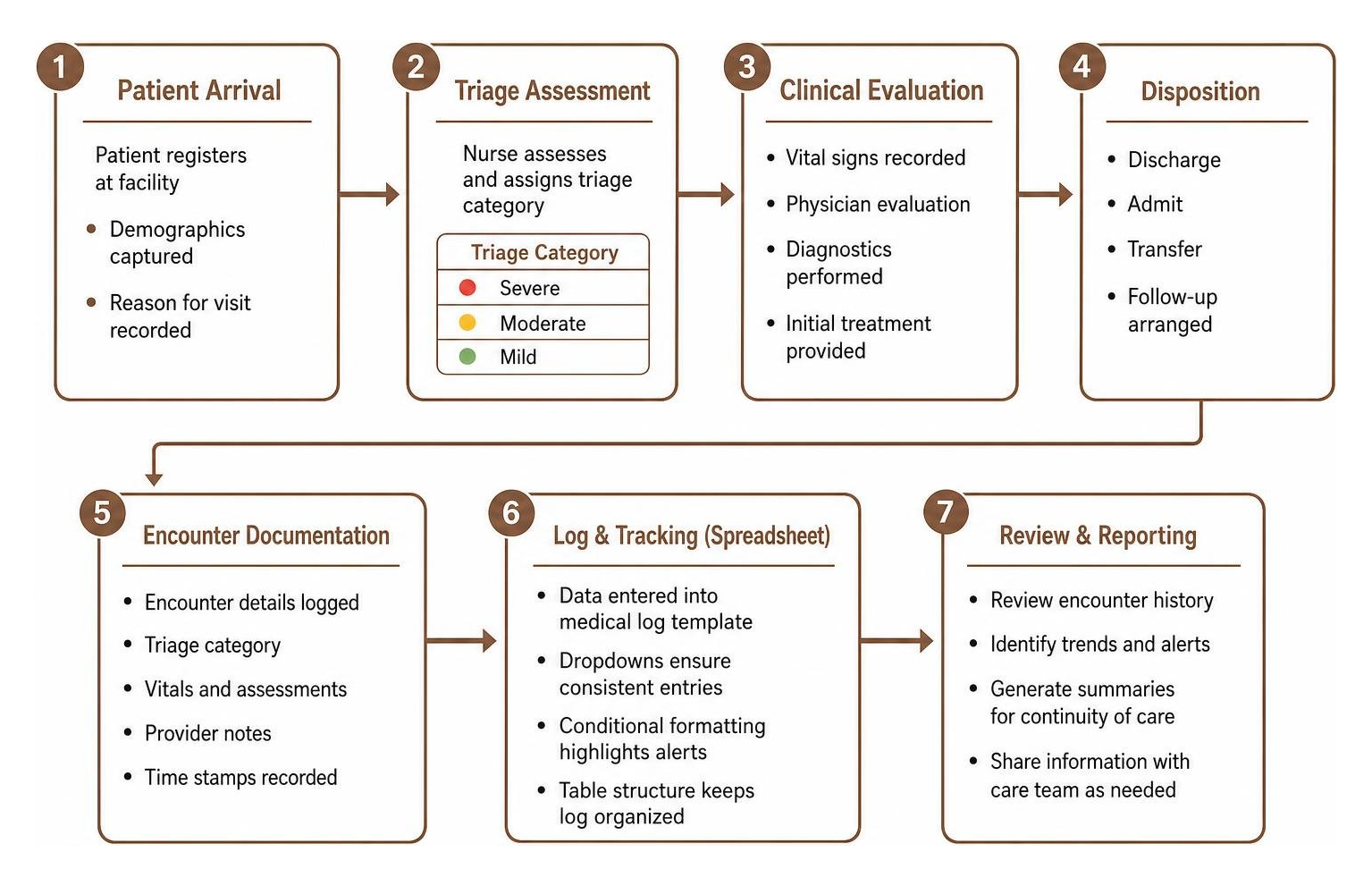
For personal records, maintaining an emergency-ready tab containing your primary diagnoses, current active medications, severe allergies, surgical history, and emergency contact details provides immediate clarity during critical moments.
Data Privacy, Security, and HIPAA Considerations
When logging personal health information (PHI), privacy must be a top priority. While major healthcare organizations are legally bound by the Health Insurance Portability and Accountability Act (HIPAA) in the United States and similar health data protection regulations globally, personal files stored on your private computer fall under your own personal data hygiene practices.
An Excel file stored on an unencrypted computer or uploaded to an unmanaged public cloud drive can expose sensitive medical records, diagnoses, and financial statements. A raw spreadsheet file is not inherently "HIPAA-compliant" on its own; compliance and security depend entirely on how the file is configured, stored, and shared.
Follow these best practices to maintain complete data privacy:
- Enable Native Workbook Encryption: Never rely solely on basic operating system file permissions. Apply password encryption directly within Excel by going to
File > Info > Protect Workbook > Encrypt with Password. Use a strong, unique passphrase. - Keep Files on Local, Encrypted Storage: For maximum privacy, store your medical spreadsheets on an encrypted local drive (such as a macOS FileVault or Windows BitLocker encrypted volume) rather than unencrypted desktop folders.
- De-identify Data for Sharing: If you need to share a log with a researcher, physical trainer, or nutritionist, create an exported copy that strips out direct personal identifiers such as your full name, date of birth, Social Security or National ID numbers, and home address.
- Avoid Public Cloud Syncing for Sensitive Files: Unprotected cloud synchronization can replicate sensitive health data across multiple shared household devices. If you use cloud storage, ensure your provider uses zero-knowledge client-side encryption.
Comparing Spreadsheets with Dedicated Health Logging Apps
Spreadsheets offer unmatched flexibility for data manipulation, but they are not always the most convenient tool when you need to record a symptom the moment it occurs.
Understanding the trade-offs between desktop spreadsheets and private mobile health apps helps you build a personal health diary routine you can actually sustain.
| Feature / Capability | Excel Spreadsheets | Dedicated Private Health Apps (e.g., Nama) |
|---|---|---|
| Data Customization | Complete control over every column, formula, and layout. | Flexible custom metrics and freeform daily notes. |
| Data Privacy & Storage | Fully offline and local (if saved locally on device). | 100% offline, local-on-device, zero-account model. |
| Mobile Data Entry | Clunky on smartphone touchscreens; requires zooming and cell tapping. | Seamless, one-handed mobile entry designed for quick logging. |
| Media Attachments | Embedding meal photos or rash pictures can bloat file size and distort layout. | Native photo attachments linked directly to daily logs. |
| Data Export | Native .xlsx, .csv, or .pdf file exports. |
Full data and photo export whenever you need it. |
| Formulas & Calculations | Advanced statistical modeling and complex multi-variable math. | Clean automated visual trends and running daily trackers. |
While a desktop spreadsheet provides an expansive canvas for long-term health history archives, keeping your daily journal and notes on a dedicated mobile app ensures you never forget to log acute symptoms, daily meals, or workout stats on the go. Exploring versatile health tracking features that prioritize an offline, private approach gives you the convenience of mobile entry without sacrificing data ownership.
Common Spreadsheet Logging Mistakes to Avoid
Even seasoned spreadsheet users can run into pitfalls that degrade data quality over time. Avoiding these common mistakes will keep your medical log reliable, readable, and easy to analyze:
- Mixing Date Formats: Switching between
DD/MM/YYYYandMM/DD/YYYYwithin the same column prevents Excel from sorting records properly and can lead to confusing chronological timelines. - Failing to Document Measurement Context: Logging a blood glucose reading of "140" without indicating whether it was taken fasting or two hours after a high-carb meal strips the data of its clinical meaning.
- Overcomplicating the Workbook Early On: Building a sheet with 50 complex columns on day one often leads to logging fatigue. Start with the core 4–5 fields you actually need, then expand as logging becomes a habit.
- Neglecting Regular Local Backups: Hardware failures happen. Keep versioned backups of your encrypted spreadsheet file on a secure external USB drive or secondary encrypted storage.
- Hardcoding Calculated Data: Typing manual averages into cells instead of using standard formulas increases the risk of math errors when new rows are inserted later.
Frequently Asked Questions About Personal Health Logging
How do I protect sensitive medical data stored in a spreadsheet?
To safeguard sensitive medical data in Excel, use built-in encryption (File > Info > Protect Workbook > Encrypt with Password). Store the spreadsheet on a password-protected, encrypted local disk rather than an open public folder. If you must transport the file, store it on an encrypted USB flash drive or share it via secure, end-to-end encrypted transfer channels.
Can spreadsheet health logs be used across mobile and desktop devices?
Yes, standard .xlsx files can be opened using mobile spreadsheet viewers on iOS and Android. However, data entry on mobile screens can feel cumbersome due to tiny cell grids and small input bars. Advanced features like VBA macros generally do not run on mobile spreadsheet viewers. For quick, on-the-go tracking, many users prefer logging daily entries in a dedicated offline mobile app and transferring summarized data to desktop spreadsheets periodically.
What is the difference between a medical log and a medication list?
A medication list is a targeted, static document that catalogs active prescriptions, exact dosages, intake schedules, and prescribing doctors. A medical log is a broader, ongoing chronological record that tracks dynamic health events over time—such as daily blood pressure trends, symptom flare-ups, specialist consultations, diagnostic lab results, and medical expenses.
Conclusion
Taking ownership of your health records is one of the most effective steps you can take toward proactive personal wellness and clearer communication with your care team. An organized personal health diary transforms vague recollections into concrete, actionable trends that help doctors make accurate diagnoses and adjust treatments safely.
Spreadsheets give you the freedom to build a completely private, offline tracking system customized to your unique physiological needs. Whether you manage your comprehensive archives in an Excel workbook or prefer the instant, pocket-sized simplicity of an offline mobile diary to track anything from daily symptoms to meals and vitals, consistency and privacy remain paramount. Choose the workflow that fits your daily routine, protect your data diligently, and maintain a clear, continuous record of your health journey.