Build a Simple Excel Food Diary in Under Ten Minutes
Build an Excel Food Diary That Works Offline
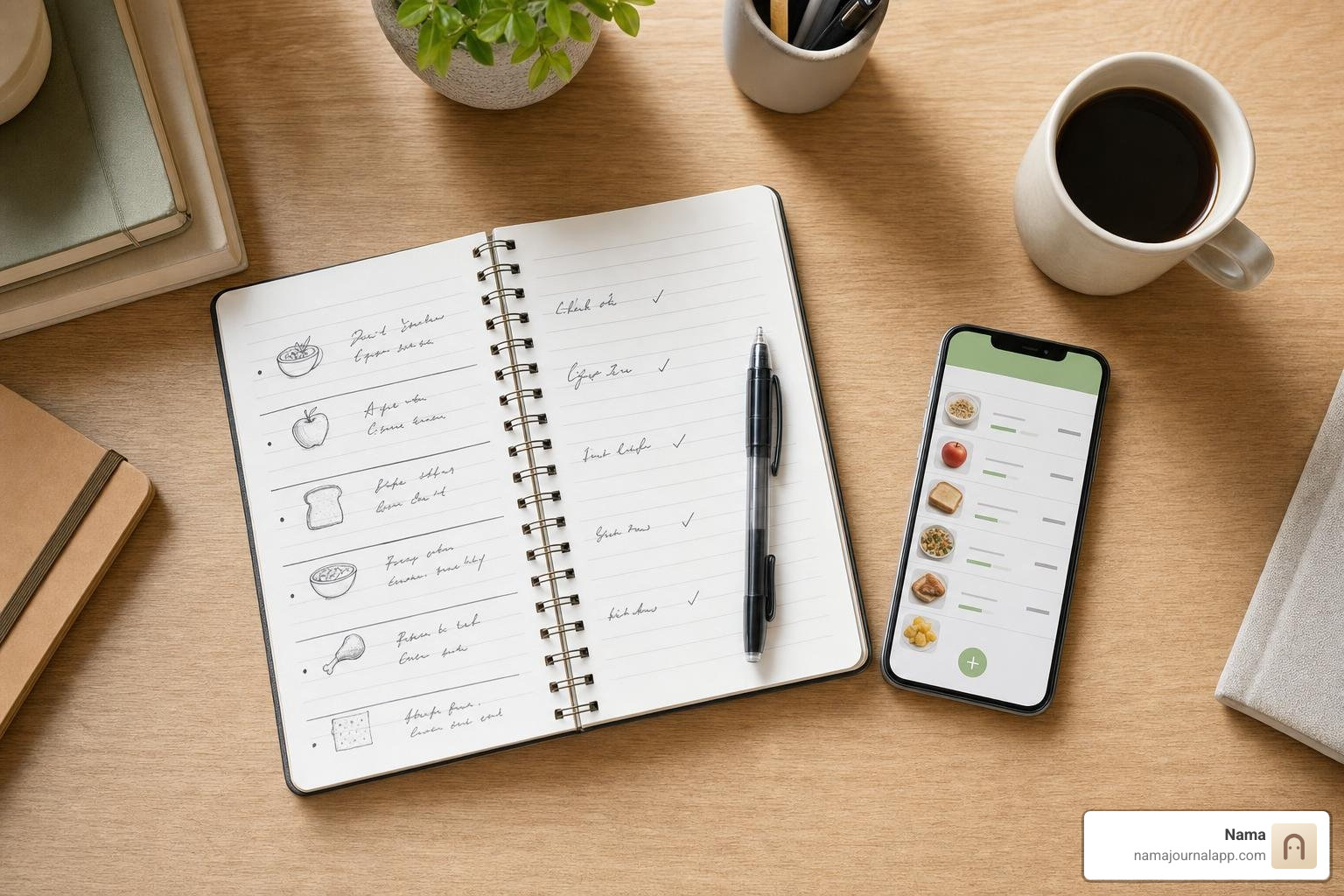
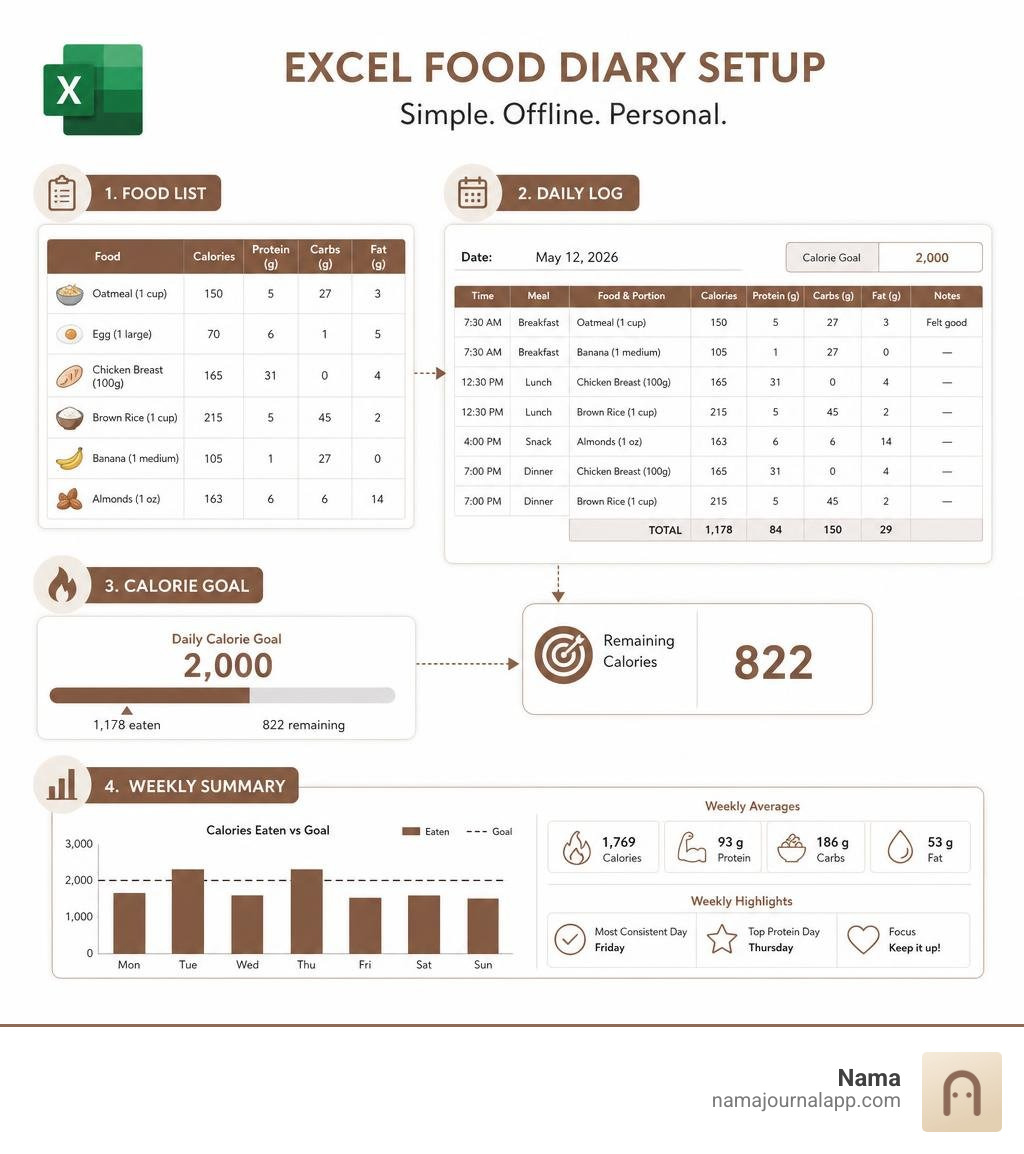
You can build an Excel food diary in under ten minutes: create a daily log, add a short list of foods you eat often, and use simple formulas to total calories and macros. Start with these columns:
- Date and time
- Meal - breakfast, lunch, dinner, or snack
- Food and portion
- Calories, protein, carbs, and fat
- Notes - hunger, mood, symptoms, or workout context
Set a daily calorie target in one cell, then subtract your logged total to see what remains. Keep the workbook saved locally if you want an offline, private record with no ads, subscriptions, or social feed.
Food logging can make eating patterns easier to spot, from unplanned snacks to meals that leave you low on protein or energy. A spreadsheet is especially useful when most of your meals repeat: instead of searching a huge app database, you can maintain a focused food list based on the ingredients and meals you actually use.
This guide shows you how to make the log fast enough for daily use, while leaving room to track exercise, mood, symptoms, recipes, and nutrition goals your way.
Excel food diary glossary:
Why Build a Custom Excel Food Diary Instead of an App?
Mobile diet apps often promise effortless tracking, but many people experience burnout within weeks. Clunky interfaces, aggressive notifications, recurring monthly subscriptions, and forced cloud synchronisation turn a simple health habit into digital fatigue. If you want a tailored routine, testing out different creative food journal ideas inside a personal spreadsheet provides unmatched flexibility.
When a developer documented how they built my own in "Diet" Excel, instead of diet app, they highlighted a compelling truth about our eating routines: roughly 90% of meals use only 10% of our usual ingredients. Commercial apps force you to search through bloated public databases containing hundreds of thousands of user-submitted brand entries. In contrast, maintaining your own curated list of 30 to 50 frequent staples in Excel lets you log meals in seconds without sifting through duplicates or inaccurate entries.
Spreadsheets offer complete data ownership and offline security. Your personal health metrics, eating schedules, and physical goals remain stored strictly on your device rather than monetised on an external server.
| Feature Category | Custom Excel Food Diary | Commercial Mobile Diet Apps |
|---|---|---|
| Privacy & Security | 100% offline; stored locally | Cloud-stored; data often shared or monetised |
| Recurring Cost | Free (uses existing software) | Monthly or annual subscription fees |
| Database Relevance | Personal 30–50 core items | Bloated databases with duplicate entries |
| Custom Formulas | Unlimited customization and math | Locked calculation models |
| Data Exportability | Native .xlsx, CSV, or PDF export | Export features often paywalled |
| Ad Distractions | Zero ads or upsells | Frequent pop-ups and premium banners |
Research indicates that people who keep structured dietary logs can lose up to 50% more weight than those who do not track their intake. Building your own workbook ensures your logging system conforms directly to your lifestyle.

Essential Structure and Core Columns for Your Spreadsheet
A clean architecture keeps your workbook responsive and easy to navigate. Rather than cramming calculations, references, and logs onto a single grid, separate your workbook into three primary sheets:
- DailyLog: Your active entry workspace for recording meals, timestamps, servings, and notes.
- FoodMaster: The central database containing standard portion sizes, baseline calories, and macronutrient values per serving.
- Analytics: A summary tab featuring weekly pivot tables, caloric deficit calculations, and macronutrient split charts.
When setting up your logging schedule, committing to a structured food diary for a week will help you establish consistent recording habits before expanding into multi-month historical archives.
Designing the Master Food Database and Portion Units
Your FoodMaster tab acts as the single source of truth for all automated lookups. Structure this sheet with structured table headers:
- Food Item (e.g., Rolled Oats, Chicken Breast, Olive Oil)
- Category (e.g., Grains, Poultry, Fats, Dairy)
- Serving Unit (e.g., grams, ml, oz, tbsp, large)
- Serving Base Size (e.g., 100 for grams, 1 for individual items)
- Calories (kcal)
- Protein (g)
- Carbohydrates (g)
- Fat (g)
- Fiber (g)
Populate these values using accurate packaging labels or verified nutritional databases. Standardising your baseline measurements—such as logging all solid ingredients per 100g or per standard serving—ensures your downstream calculations remain mathematically sound.
Setting Up the Daily Meal Entry Log
The DailyLog sheet is where you log your daily intake. Arrange your columns horizontally to maintain tabular integrity:
- Date: Entered as a standard date format (YYYY-MM-DD).
- Time / Meal: Timestamp or categorical label (Breakfast, Lunch, Dinner, Snack).
- Food Selected: Selected via dropdown menu linked to your
FoodMastertable. - Servings / Portion: A multiplier (e.g., 1.5 servings) or raw consumed quantity (e.g., 150g).
- Calculated Calories & Macros: Auto-populated columns using dynamic lookup formulas.
- Hunger / Mood / Context: Qualitative ratings (1 to 5 scale) to monitor mindful eating habits.

Step-by-Step Formula Setup to Automate Calorie and Nutrient Totals
Automating your spreadsheet eliminates repetitive arithmetic and minimizes logging errors. Once your FoodMaster database is structured as an Excel Table named FoodTable, simple formulas can calculate your nutritional totals instantly.
Automating Lookups with XLOOKUP and VLOOKUP in Your Excel Food Diary
If you are using modern versions of Excel or Microsoft 365, XLOOKUP provides a robust, bidirectional search method. Assuming your selected food is in column C and your portion multiplier is in column D:
=XLOOKUP(C2, FoodTable[Food Item], FoodTable[Calories]) * D2
For legacy spreadsheet versions, VLOOKUP achieves the same outcome. If Calories are located in the 5th column of your food table:
=VLOOKUP(C2, FoodTable, 5, FALSE) * D2
You can review similar functional designs in resources like the Excel Calorie Counter-Track Daily-Recipe Calculator to see how dynamic formulas scale across multi-column trackers.
Parsing Number and Unit Entries with Text Formulas
For rapid data entry, you might prefer typing the number and unit into a single cell (such as 150g or 2tbsp) rather than separating them into distinct columns. You can separate the number from the text unit using Excel text parsing functions.
To extract the numeric portion from a string entered in cell D2:
=VALUE(LEFT(D2, SUM(LEN(D2) - LEN(SUBSTITUTE(D2, {"0","1","2","3","4","5","6","7","8","9"}, "")))))
To extract the unit text for automated conversions:
=TRIM(SUBSTITUTE(D2, LEFT(D2, SUM(LEN(D2) - LEN(SUBSTITUTE(D2, {"0","1","2","3","4","5","6","7","8","9"}, "")))), ""))
You can pass these parsed units into Excel's native =CONVERT() function (e.g., converting ounces to grams via =CONVERT(value, "oz", "g")) before applying your nutrient multiplier.
Calculating Daily Caloric Deficit and Macronutrient Splits
To track your progress against daily nutritional targets, set up a dedicated summary block at the top of your DailyLog sheet. With custom metrics, you can easily track anything from daily calories to micronutrient limits.
- Daily Calorie Intake: Compute total energy consumed on a specific date (cell G1) using
SUMIFS:=SUMIFS(DailyLog[Calories], DailyLog[Date], G1) - Remaining Calorie Allowance: Subtract total intake from your daily budget (cell G2):
=G2 - SUMIFS(DailyLog[Calories], DailyLog[Date], G1) - Macronutrient Energy Distribution:
- Protein Energy:
= (SUMIFS(DailyLog[Protein], DailyLog[Date], G1) * 4) / TotalCalories - Carbohydrate Energy:
= (SUMIFS(DailyLog[Carbs], DailyLog[Date], G1) * 4) / TotalCalories - Fat Energy:
= (SUMIFS(DailyLog[Fat], DailyLog[Date], G1) * 9) / TotalCalories
Advanced Features: Recipe Calculators, Summaries, and Custom Diets
Standard templates often struggle with home-cooked meals involving multiple raw ingredients. By adding a recipe calculator tab and summary tools, your workbook can easily accommodate complex batch cooking and specialised diet protocols. You can also explore pre-configured workbook layouts like the Food Log Template | Printable Daily Food Log to inspire your sheet structure.
Building an Integrated Homemade Recipe Calculator
To calculate nutritional values for homemade soups, casseroles, or baked goods:
- Create a
RecipeBuildertab where you list all raw ingredients and their quantities for a complete dish. - Sum the total raw batch calories, protein, carbs, and fats using your master lookup formulas.
- Weigh the finished, cooked dish in grams (e.g., 1,400g total batch weight).
- Divide total batch nutrients by total finished weight to derive precise nutritional values per 100g.
- Add this new composite dish directly to your
FoodMasterdatabase so you can log individual servings in yourDailyLogwithout re-entering raw ingredients.
Creating Weekly Trend Summaries with Pivot Tables and Charts
Pivot tables allow you to consolidate hundreds of individual meal rows into clear weekly summaries. If you prefer pairing numbers with broader lifestyle notes, our guide on journal and notes explains how qualitative reflections add valuable context to raw data.

To build your weekly analytics dashboard:
- Highlight your
DailyLogtable and insert a PivotTable on theAnalyticstab. - Place
Dateinto the Rows area (grouped by Days and Weeks) and addCalories,Protein,Carbs, andFatinto the Values area (set toSum). - Insert a clustered column chart comparing daily calorie intake against your baseline target line.
- Add a 100% stacked bar chart to visualise your daily macronutrient ratio splits across the week.
Adapting the Excel Food Diary for Keto, Diabetic, and Medical Logging
Custom spreadsheets make it simple to adapt your columns for specific medical or dietary goals:
- Ketogenic Tracking: Add a calculated column for Net Carbs:
=[@Carbs] - [@Fiber] - Diabetic Blood Glucose Monitoring: Add adjacent columns for Pre-Meal Blood Glucose, Post-Meal Blood Glucose (2-hour mark), and Medication/Insulin units taken.
- Food Intolerance & Elimination Diets: Include qualitative text columns for physical symptoms (bloating, fatigue, joint pain) and severity scores (1–10) to correlate digestive flare-ups with specific ingredients over time.
For an in-depth breakdown of structured food logging practices, review our comprehensive food diary guide.
Common Spreadsheet Mistakes to Avoid
A spreadsheet food log works best when it remains reliable and easy to maintain. Watch out for these common design pitfalls:
- Unsorted Data Validation Lists: If using dependent dropdown lists, keep your
FoodMastertable sorted alphabetically by Category and Item. Unsorted ranges can cause dropdown menus to display blank entries or mismatch records. - Hardcoding Nutritional Values in Entry Cells: Never type static calorie numbers directly into your daily log rows. Always use lookup formulas pointing to your master database to keep historical calculations consistent and auditable.
- Neglecting File Backups: Local files should be backed up regularly. Save an automated archive of your
.xlsxworkbook to an external hard drive or secure local storage weekly. - Overcomplicating the Entry Process: Avoid tracking dozens of obscure micronutrients on day one. Start with core calories and macronutrients, then expand your tracking columns once your logging habit is firmly established.
Frequently Asked Questions About Excel Food Tracking
Can I use an Excel food diary offline on my mobile phone?
Yes. You can save your .xlsx workbook directly to your mobile device's local storage and open it using the Microsoft Excel mobile app or compatible spreadsheet editors. All formulas and lookup tables function offline without an active internet connection.
How do I handle multi-ingredient meals without logging every item individually?
Use the Recipe Calculator method: enter the raw ingredients once on your recipe tab to determine the total macronutrient breakdown per 100g or per serving. Then, log the composite dish as a single row in your daily journal.
What is the fastest way to extract numbers and units entered in a single cell?
Use a combined text-parsing formula leveraging LEFT, LEN, and SUBSTITUTE to separate the numeric value from the text string. Alternatively, standardise your daily log into two separate input columns—one for portion quantity and one for unit selection—to keep formula maintenance simple.
Conclusion
Building your own spreadsheet food journal gives you complete control over your dietary tracking. By maintaining a curated food list, automating calculations with lookups, and reviewing weekly trend charts, you gain deep nutritional insights without subscription fees, advertising clutter, or cloud privacy concerns.
If you enjoy private, offline tracking but prefer logging meals on your phone with native iOS convenience, explore the Nama Food Diary. Nama is an iOS wellness-journal app that lets you log meals, workouts, custom metrics, and notes locally on your iPhone. Designed with an offline, privacy-first architecture, it requires no account and allows you to export your text and photos at any time.